
Background
Virtualmin, like cPanel, is designed for PHP/MySQL shared hosting. But what if you want to run NodeJS on it? Or that super sexy React app that you’ve just vibe coded? Surely JavaScript is pretty simple and a flexible platform like Virtualmin should just support it?
The bottom line is building an automation platform for PHP/MySQL and Apache and Nginx isn’t the same as building a NodeJS server. So no, Virtualmin (nor cPanel), properly supports it. However, with a bit of elbow grease you can get it working. Here are some tips to get you started:
Setup
Install Virtualmin as usual
SSH as root to the server
Install the latest LTS version of Node (e.g. 24). By default, servers don ‘t have it on.
curl -fsSL https://deb.nodesource.com/setup_24.x | sudo -E bash -
Open the firewall for the Node server port.
One has to decide on which port NodeJS is going to run. For this tutorial, we’re settling on port 3000.
You probably don’t want Node’s server port running on the Internet, but, at the same time, it’s really useful for testing from the outside.
Navigate to Webmin/Networking/FirewallD and add TCP port 3000.
Next, login as the user. Decide what is going to be your application directory. For this example, we have chosen ~/app
Do this (as the user, and not as root):
mkdir ~/app
cd ~/app
npm init -y
Now create a minimal file called server.js to show that NodeJS is running:
const http = require('http');
const server = http.createServer((req, res) => {
  res.writeHead(200, { 'Content-Type': 'text/plain' });
  res.end('Hello world!');
});
server.listen(3000, () => {
  console.log('Server running on http://localhost:3000');
});
Next, run the server:
node server.js
Next, visit the HTTP (note, not SSL) URL on your server:
http://example.com:3000
If all went well, you should now see:
Hello world!
So far, so simple?
There are still a few things to do:
- SSL, including automatic renewal
- Persistence of the server (including automatic restart)
SSL
SSL is a lot easier than expected. Simply follow this the next section about “Create Proxy Path” with the screenshot, and then after you’ve made the change, “Re-check server configuration”.
Create Proxy Path
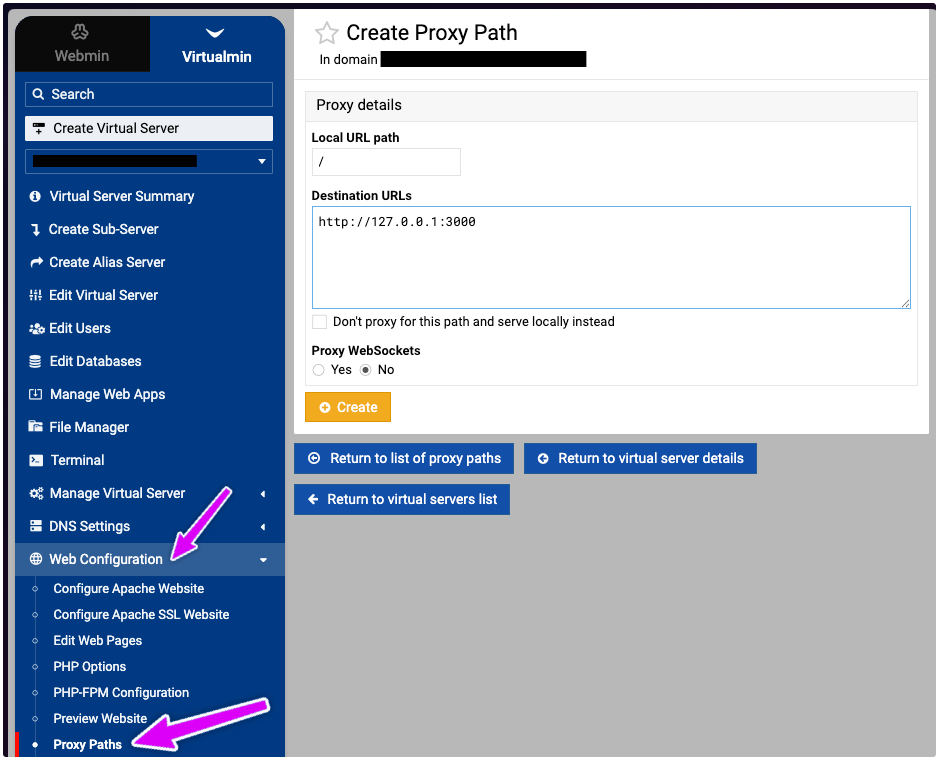
To keep things tidy from the outside, also change your node server to *only* listen on localhost:
server.listen(3000, '127.0.0.1', () => {
  console.log('Server running on http://127.0.0.1:3000');
});
and then
pm2 restart nodejs-node-app
Now that node is only running on localhost, you may also remove it from the firewall allow list.
Persisting the server
The NodeJS server needs to run all the time. At times, the user might make code changes, meaning the NodeJS server has to be restarted.
The basics of background processes in Linux can be demonstrated below.
- First, the node server is start with
&to send it to the background. The server replies with the process ID and a message about the server running. - Next, we use
ps -ef | grep serverto see our work. - Finally, we can manually terminate the process by
kill -9
user@host:~/app$ node server.js &
[1] 23599
user@host:~/app$ Server running on http://localhost:3000

user@host:~/app$
user@host:~/app$ ps -ef | grep server
root 7773 1 0 10:22 ? 00:00:00 /usr/share/webmin/virtual-server/lookup-domain-daemon.pl
nodejs 23599 18889 0 11:18 pts/4 00:00:00 node server.js
nodejs 23609 18889 0 11:19 pts/4 00:00:00 grep server
user@host:~/app$ kill -9 25399
Of course, all the manual intervention needs to be avoid so instead, we’ll use PM2.
PM2
The next steps are to be performed by root:
npm install -g pm2
pm2 start /home/user/app/server.js --name user-node-app
pm2 save
pm2 startup
To see if it’s working, do this:
pm2 logs nodejs-node-app
PM2 Debug Output
root@host:~# pm2 start /home/nodejs/app/server.js --name nodejs-node-app

-------------

__/\\\\\\\\\\\\\____/\\\\____________/\\\\____/\\\\\\\\\_____
_\/\\\/////////\\\_\/\\\\\\________/\\\\\\__/\\\///////\\\___
_\/\\\_______\/\\\_\/\\\//\\\____/\\\//\\\_\///______\//\\\__
_\/\\\\\\\\\\\\\/__\/\\\\///\\\/\\\/_\/\\\___________/\\\/___
_\/\\\/////////____\/\\\__\///\\\/___\/\\\________/\\\//_____
_\/\\\_____________\/\\\____\///_____\/\\\_____/\\\//________
_\/\\\_____________\/\\\_____________\/\\\___/\\\/___________
_\/\\\_____________\/\\\_____________\/\\\__/\\\\\\\\\\\\\\\_
_\///______________\///______________\///__\///////////////__


Runtime Edition

PM2 is a Production Process Manager for Node.js applications
with a built-in Load Balancer.

Start and Daemonize any application:
$ pm2 start app.js

Load Balance 4 instances of api.js:
$ pm2 start api.js -i 4

Monitor in production:
$ pm2 monitor

Make pm2 auto-boot at server restart:
$ pm2 startup

To go further checkout:
http://pm2.io/


-------------

[PM2] Spawning PM2 daemon with pm2_home=/root/.pm2
[PM2] PM2 Successfully daemonized
[PM2] Starting /home/nodejs/app/server.js in fork_mode (1 instance)
[PM2] Done.
┌────┬────────────────────┬─────────────┬─────────┬─────────┬──────────┬────────┬──────┬───────────┬──────────┬──────────┬──────────┬──────────┐
│ id │ name │ namespace │ version │ mode │ pid │ uptime │ ↺ │ status │ cpu │ mem │ user │ watching │
├────┼────────────────────┼─────────────┼─────────┼─────────┼──────────┼────────┼──────┼───────────┼──────────┼──────────┼──────────┼──────────┤
│ 0 │ nodejs-node-app │ default │ 1.0.0 │ fork │ 33651 │ 0s │ 0 │ online │ 0% │ 30.3mb │ root │ disabled │
└────┴────────────────────┴─────────────┴─────────┴─────────┴──────────┴────────┴──────┴───────────┴──────────┴──────────┴──────────┴──────────┘
root@host:~# pm2 save
[PM2] Saving current process list...
[PM2] Successfully saved in /root/.pm2/dump.pm2
root@host4:~# pm2 startup
[PM2] Init System found: systemd
Platform systemd
Template
[Unit]
Description=PM2 process manager
Documentation=https://pm2.keymetrics.io/
After=network.target

[Service]
Type=forking
User=root
LimitNOFILE=infinity
LimitNPROC=infinity
LimitCORE=infinity
Environment=PATH=/usr/local/sbin:/usr/local/bin:/usr/sbin:/usr/bin:/sbin:/bin:/bin:/usr/local/sbin:/usr/local/bin:/usr/sbin:/usr/bin
Environment=PM2_HOME=/root/.pm2
PIDFile=/root/.pm2/pm2.pid
Restart=on-failure

ExecStart=/usr/lib/node_modules/pm2/bin/pm2 resurrect
ExecReload=/usr/lib/node_modules/pm2/bin/pm2 reload all
ExecStop=/usr/lib/node_modules/pm2/bin/pm2 kill

[Install]
WantedBy=multi-user.target

Target path
/etc/systemd/system/pm2-root.service
Command list
[ 'systemctl enable pm2-root' ]
[PM2] Writing init configuration in /etc/systemd/system/pm2-root.service
[PM2] Making script booting at startup...
[PM2] [-] Executing: systemctl enable pm2-root...
Created symlink '/etc/systemd/system/multi-user.target.wants/pm2-root.service' → '/etc/systemd/system/pm2-root.service'.
[PM2] [v] Command successfully executed.
+---------------------------------------+
[PM2] Freeze a process list on reboot via:
$ pm2 save

[PM2] Remove init script via:
$ pm2 unstartup systemd
Source Control for TypeScript/Express
Here is the stock recipe I follow to get source control on the server:
Virtualmin -> Terminal -> sudo -i -> su – username -> git clone https://github.com/username/app
cd ~/app
npm install
npm run build:server
cp .env.example .env
exit
pm2 start /home/username/app/dist-server/server/server.js --name username-app
pm2 logs username-app
I had a big issue when I forgot to re-check configuration as stated
I’ve changed <span class="md-inline-path-filename">postcss.config.js</span> to CommonJS syntax, which will work in that environment: